
What Is Opscompass Studio?
Opscompass Studio is a desktop application used to connect securely to Oracle databases and collect feature‑usage data for Oracle licensing analysis. Studio bundles all required dependencies, including the Opscompass CLI and Oracle Instant Client, so no separate installations or administrator privileges are required.
Supported Platforms
Studio is built with Electron, meaning the same application runs on:
- Windows (installer or ZIP distribution)
- macOS (DMG file)
- Linux
Windows notes:
- Installs under the user’s AppData directory
- No administrator or elevation required
- Antivirus software may flag the executable on first launch because it is not yet widely recognized
Installation
Windows
- Download the installer from GitHub
- Run the installer.
- Installation completes automatically with no administrator access required.
A ZIP distribution is also available if you prefer to extract and run Studio without an installer.
macOS (not released yet)
- Download the DMG file.
- Open the DMG.
- Drag Opscompass Studio into your Applications folder.
Developer / Source Install (Optional)
- Clone the repository
- Run npm install
- Start the application
This method exposes an environment selector (development vs. production) that is not visible in packaged releases.
First Launch: Setup Assistant
When Studio is launched for the first time, it starts in a clean state and automatically opens the Setup Assistant. You must complete all steps before connecting to any databases.
Opscompass Studio initial launch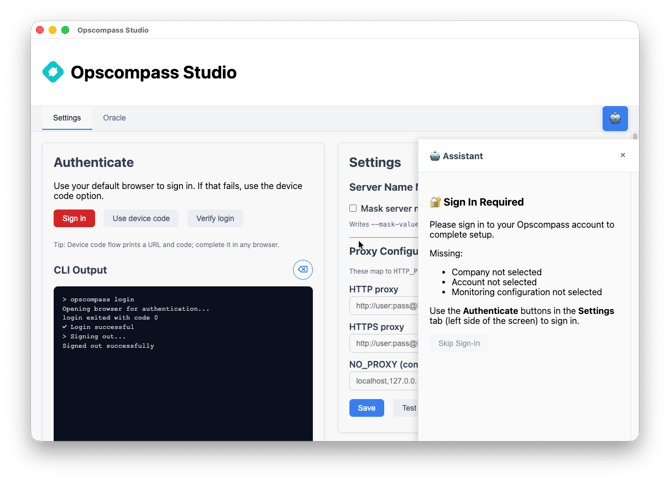
1. Sign In
- Click Sign In Opscompass Studio.
- A browser window opens with the Opscompass login flow.
- Complete authentication (including MFA if required).
- Return to Opscompass Studio after successful login.
Studio sign‑in
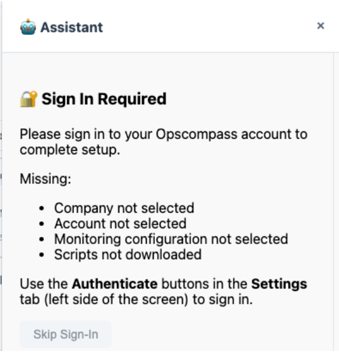
Browser‑based authentication
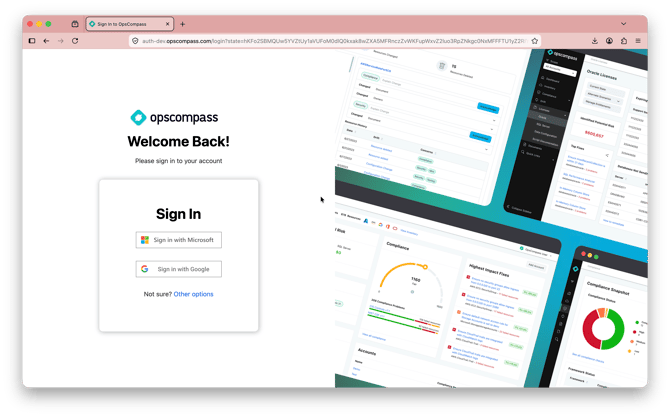
Return to Opscompass Studio after successful sign‑in
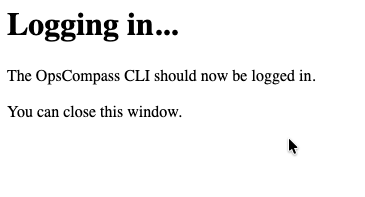
The browser tab can be closed once authentication is complete.
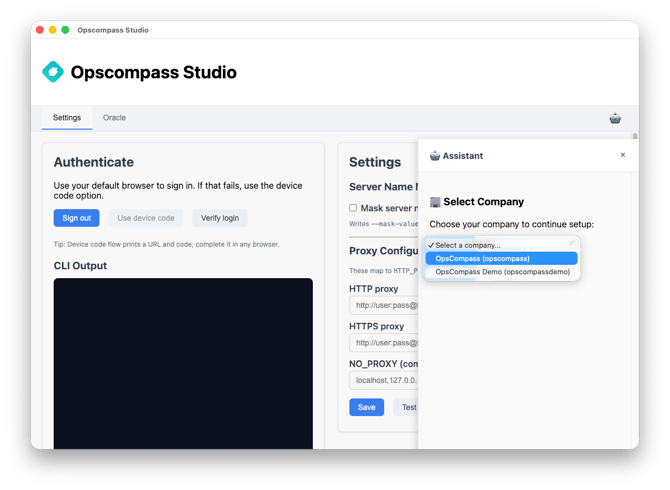
2. Select Your Company
- Choose the appropriate company from the dropdown.
- Click Continue.
Company selection
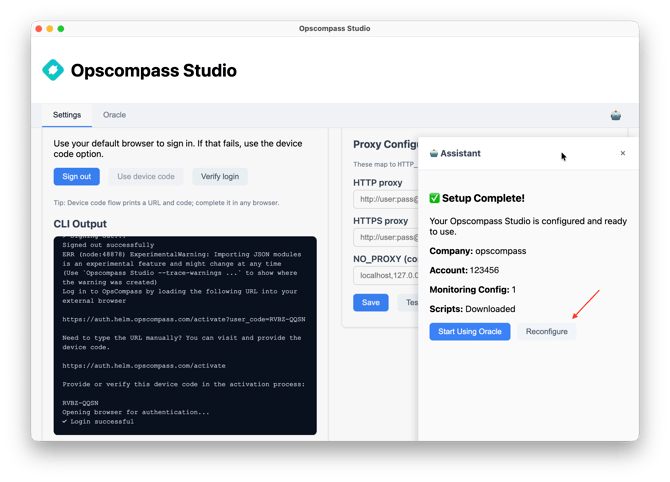
You can change companies later using Reconfigure.
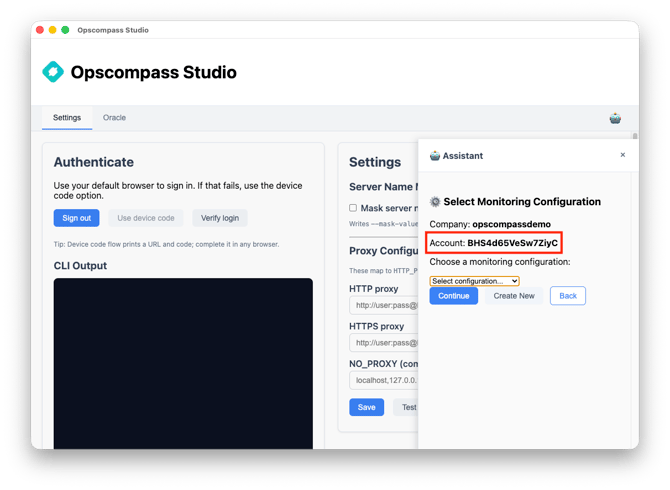
3. Select an Opscompass License Account
Studio checks for Opscompass License accounts under the selected company:
- If only one exists, it is auto‑selected
- If multiple exist, you are prompted to choose one
License account auto‑selected
4. Select or Create a Monitoring Configuration
- Select an existing configuration or
- Choose Create New, accept the default name, and click Create
Monitoring configuration selection
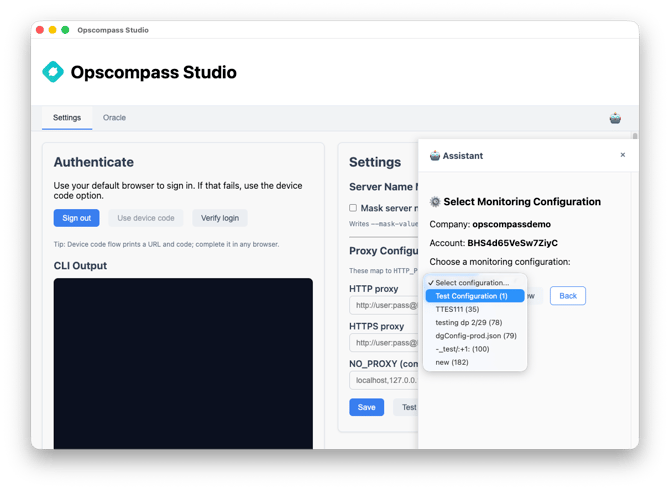
Create new configuration prompt
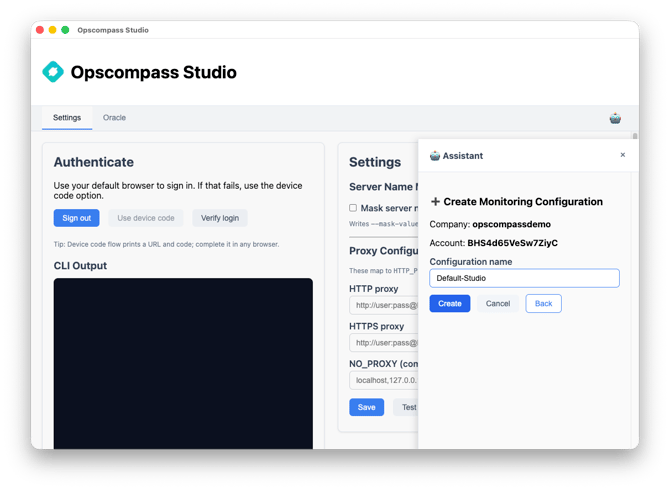
Configurations created in Studio are shared with the Opscompass platform.
5. Script and Dependency Preparation
Studio automatically:
- Downloads Oracle feature‑usage scripts
- Prepares the bundled Oracle Instant Client
- Enables SQL*Plus execution
No user action is required.
Setup complete confirmation
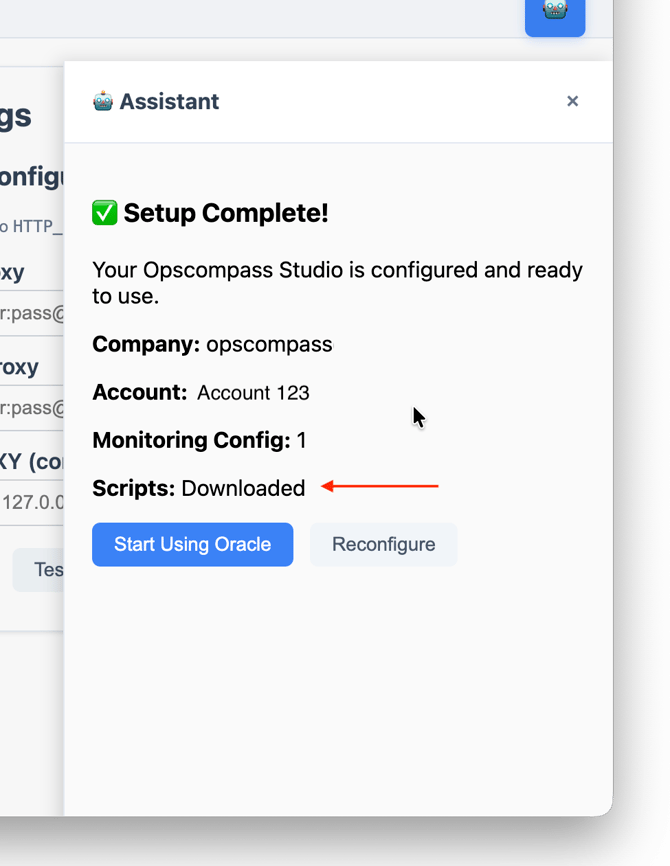
Once complete, the Setup Assistant closes and the Oracle database list appears.
Oracle Database Connections
The Oracle Databases page shows all databases defined in the selected monitoring configuration.
You can:
- View database connections
- Edit connection details
- Save changes directly back to Opscompass
Oracle database list view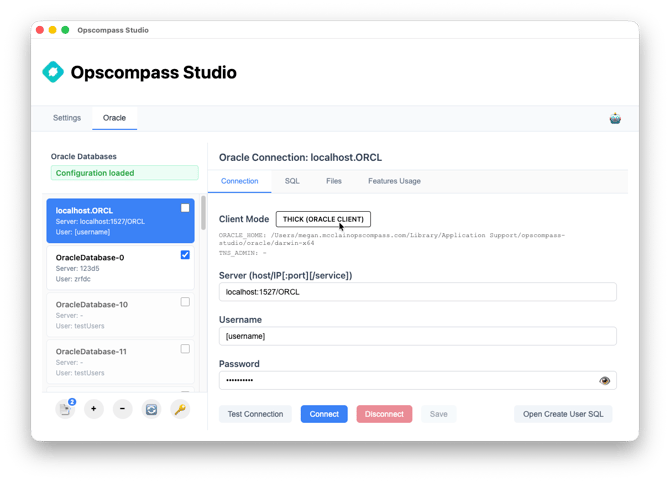
Changes made in Studio and the Opscompass web UI remain in sync.
Editing Connection Details
- Click on a database.
- Edit fields such as:
- Host / Port / Service Name
- Username / Password
- Optional TNS Entry
- Click Save.
Database connection edit panel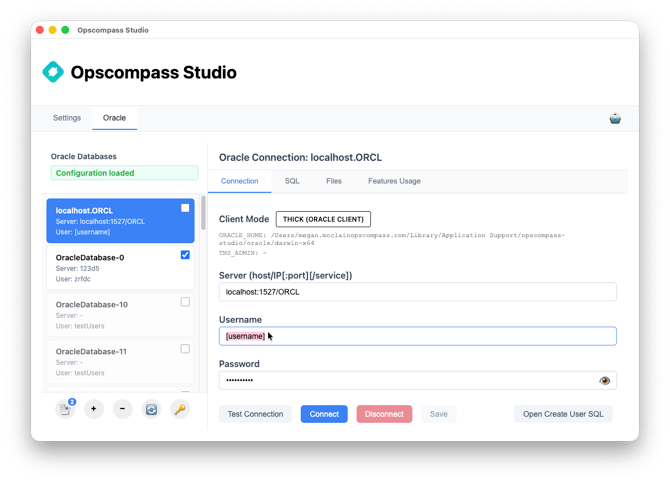
Default credentials configured in Opscompass may auto‑populate.
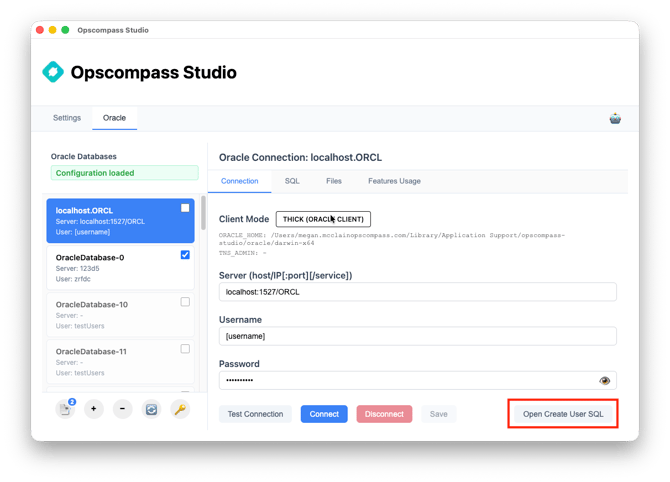
Create User SQL
There is an option to create a dedicated user with minimal permissions to fill out the connection fields.
- Click Open Create User SQL
- Default editor for .sql files will open
- Review permissions
- Edit the username/password
- Run script
Create user SQL button
Testing the Connection
- Click Test Connection.
- Studio initializes the bundled Oracle Instant Client.
- Connectivity and credentials are verified.
Successful connection confirmation
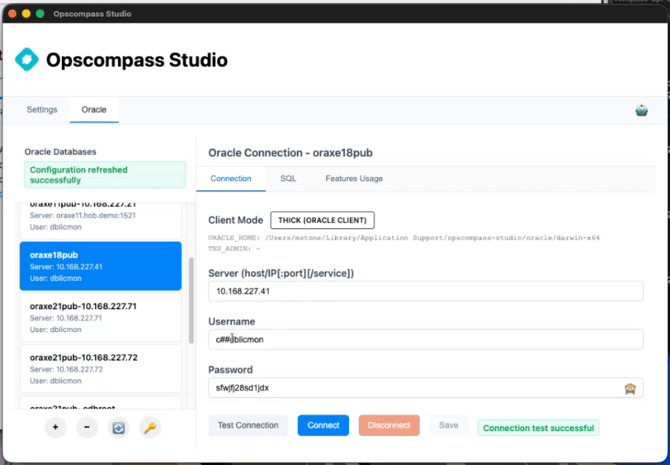
Container database detection:
- If authentication fails, Studio automatically retries with C## prefixed to the username.
Connecting
- After a successful test, click Connect.
- Studio maintains an active connection for the session.
Connected database indicator
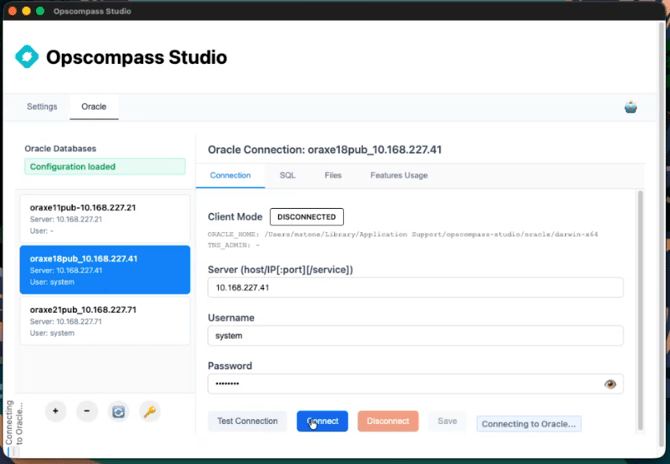
Click Disconnect to close the session.
SQL Tab (Optional)
The SQL tab allows you to:
- Run ad‑hoc SQL queries
- Execute SQL*Plus scripts
SQL tab with query and results
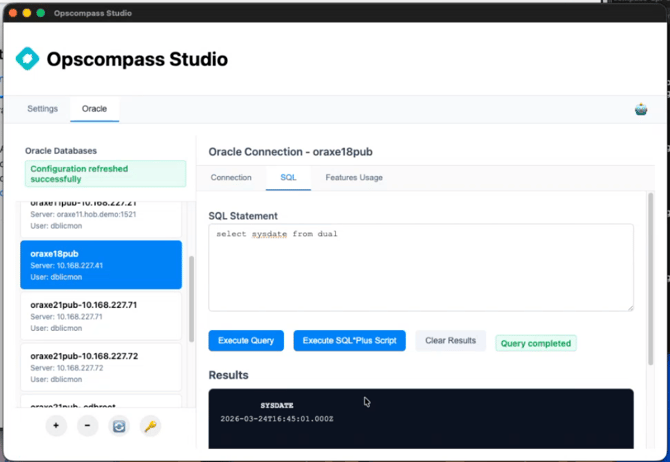
This tab is primarily for troubleshooting and may be hidden in some releases.
Gathering Oracle Feature Usage Data
Collecting feature usage data is the primary purpose of Studio for Oracle licensing.
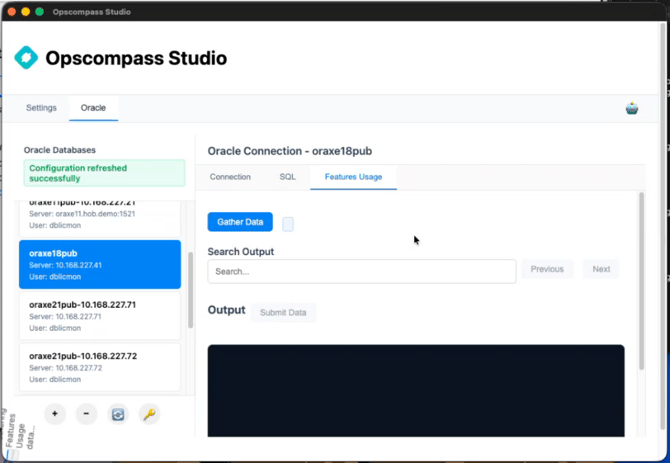
How to Run Feature Usage
- Connect to a database.
- Click Feature Usage.
- Studio runs the Oracle feature usage script.
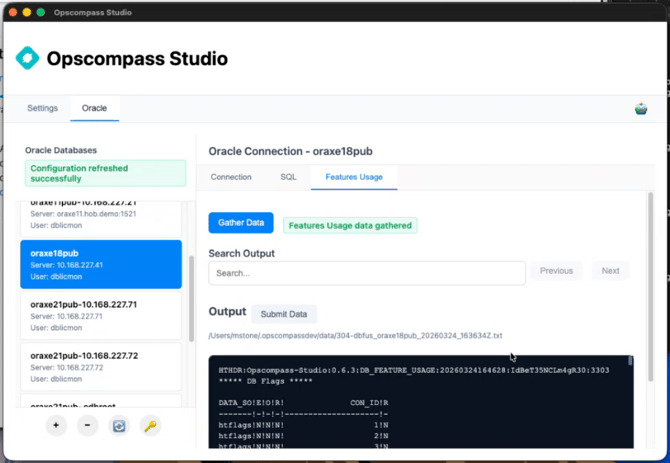
- Results are saved locally and displayed.
Feature Usage tab before execution
Feature Usage output displayed
Gathering Data from Multiple Connections
You can gather feature usage data from multiple connections at once.
- Select the checkboxes for all desired connections.
- Click on the bottom left button. There should be a number indicating how many connections you have selected.
- Click Feature Usage.
.png?width=314&height=518&name=image%20(7).png)
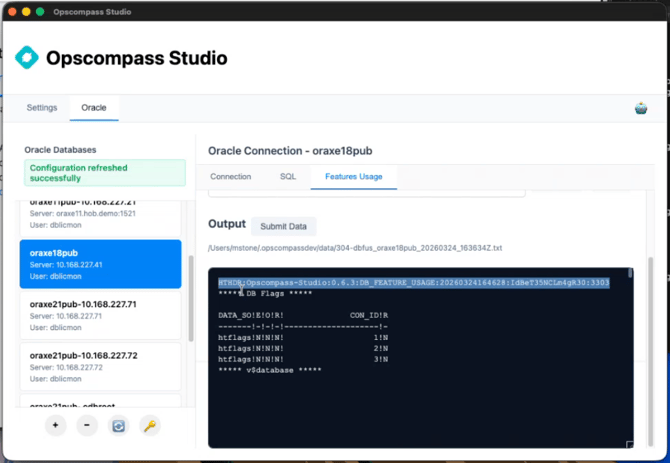
About the Output File
Each output file includes metadata identifying:
- Studio version
- Data type (Oracle DB feature usage)
- Collection date and time
- Opscompass License account
- Database configuration
Output file with header row highlighted
Submitting Data to Opscompass
- Click Submit Data.
- Studio transmits the output file securely.
- Opscompass receives, processes, and updates feature usage data.
Submit Data button
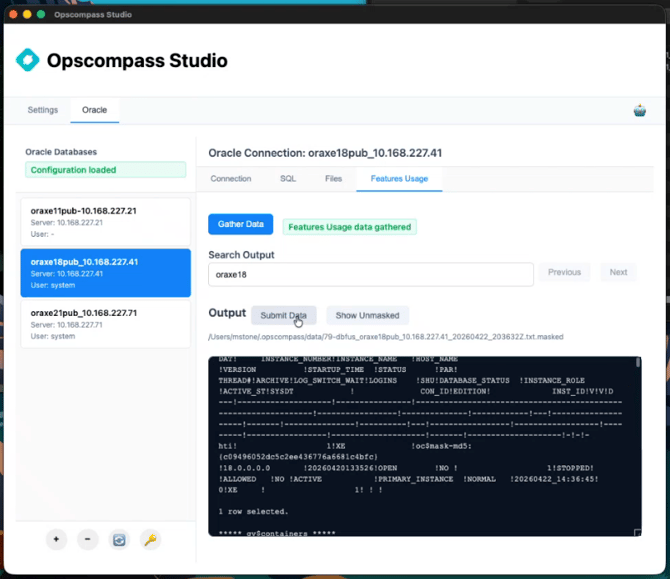
Submission success confirmation
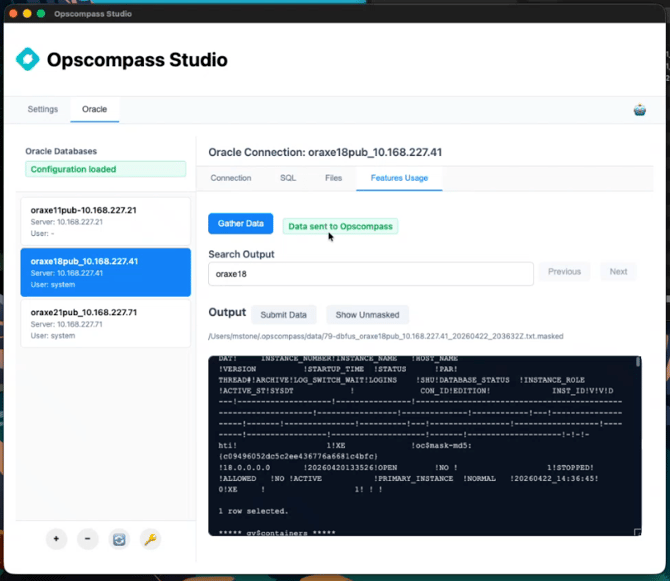
Updates usually appear within seconds but may take a few minutes.
Review in Opscompass
- Click Review Usage.
- Studio redirects user to the Feature usage page in the Opscompass web app.
- Next step: learn how to review the output.
.png?width=670&height=369&name=image%20(6).png)
Files Tab
The Files tab provides visibility into Oracle feature usage files that have been generated locally by Opscompass Studio and allows you to manually submit files that were not previously sent to Opscompass.
This tab is designed for scenarios where data collection and data submission do not happen at the same time or on the same machine.
Files tab on the Oracle page
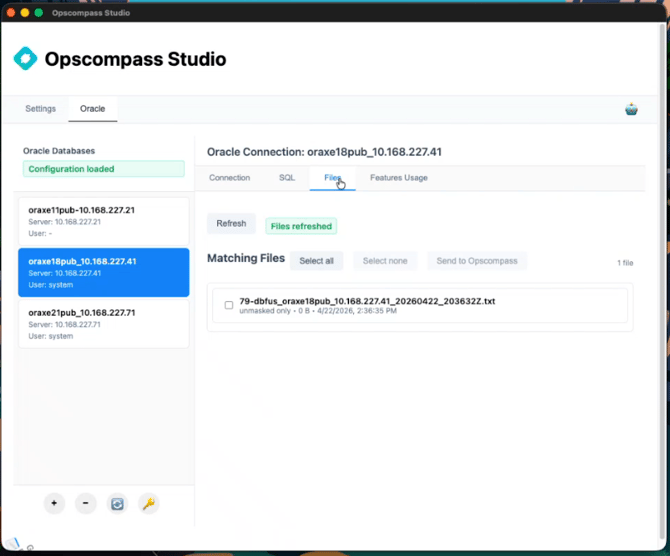
What appears in the Files tab
When you navigate to Oracle → Files, Studio displays all recognized Oracle feature usage files found in the local data directory.
You can:
- View file name, size, and creation date
- See whether a masked version of the file exists
- Identify files that have not yet been submitted
Only Oracle‑specific files are shown when viewing the Oracle tab. Files for other technologies do not appear here.
Masked and unmasked files
If data masking is enabled when feature usage is collected, Studio automatically generates:
- An unmasked file containing original values
- A masked file with sensitive fields replaced using MD5 hashing
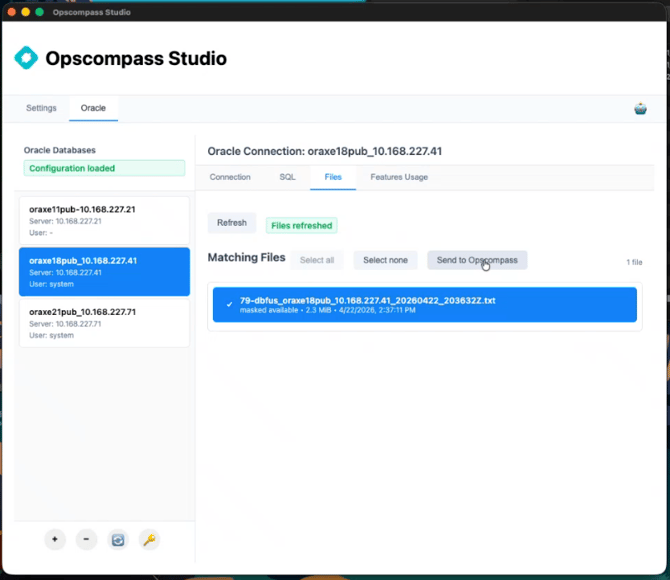
When a masked version exists:
- The Files tab indicates that masking is available
- The masked file is the version that is submitted to Opscompass
- You can switch between masked and unmasked views when reviewing file contents
Submitting files from the Files tab
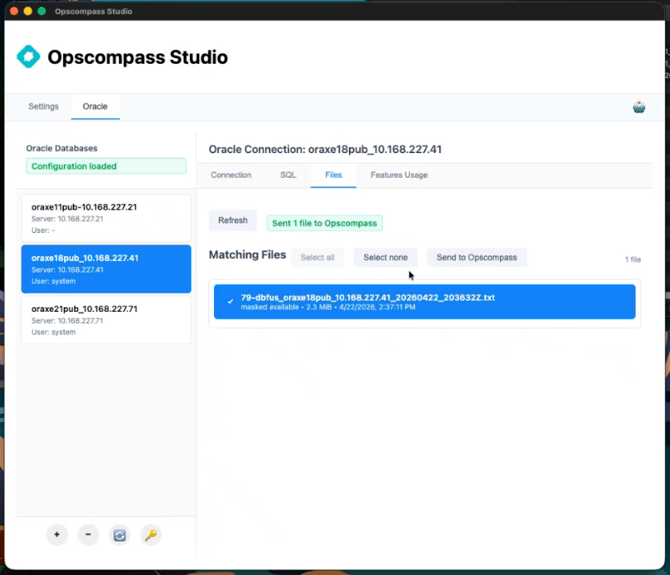
From the Files tab, you can manually submit files by selecting one or more entries and clicking Send to Opscompass.
This is useful if:
- A previous submission failed
- Studio was offline at the time data was collected
- Feature usage was gathered on a different system
Opscompass CLI tracks submitted files and automatically prevents duplicate submissions. If a file has already been sent successfully, it will not be present.
Send to Opscompass button
Submission success confirmation
Advanced use case: split‑mode operation
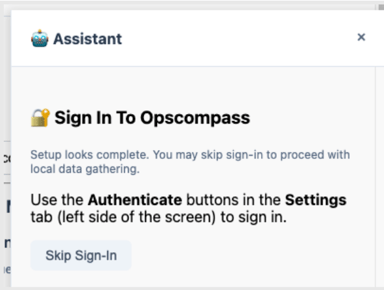
The main use-case for split mode operation is to have the ability to run Studio in a secure environment without Internet access. Once the setup is complete, configuration files can be copied/synchronized between two environments where one has Internet access and the other has access to the target databases. In the current preview release, these file transfers will be manual. Simply copy the entire %HOMEDIR%/.opscompass folder from one desktop to another.
In such cases, if the login to Opscompass is no longer valid, but the configuration is otherwise complete, then you will see the option above to skip sign-in.
After gathering data in the secure environment, copy the contents of %HOMEDIR%/.opscompass/data to a desktop that has Internet access, and use the “Files” tab to transfer the data to Opscompass.
The Files tab supports environments where:
One machine collects Oracle feature usage data (often in a secure or offline network). This could be another instance of Studio, or it could be one of our data gathering appliances.
A different machine submits files to Opscompass using Studio.
In these cases, files can be transferred between machines and submitted through the Files tab without requiring database connectivity on the submission system.
Split-mode
Data Masking (Optional)
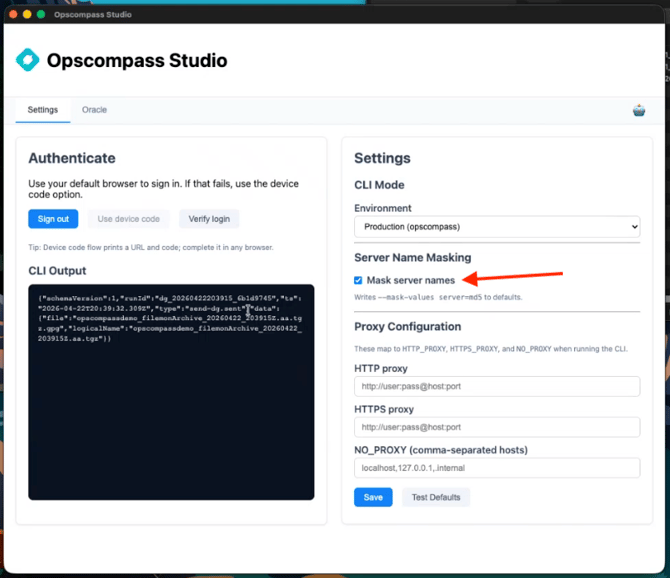
Studio supports MD5 masking for sensitive fields such as hostnames.
Example masking rule:
"mask": [
{ "property": "server", "type": "md5_local" }
]
When masking is enabled:
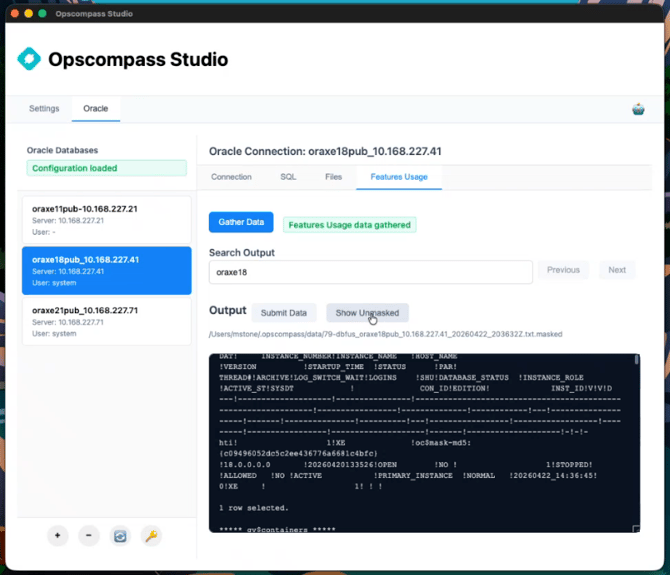
- Both original and masked output files are generated
- The masked file replaces specified values with hashes
- The masked file is always submitted
Unmasked output button
Masking toggle
Frequently Asked Questions
Can Studio run on a shared Windows server or jump box?
Yes. Studio installs per user with no elevated permissions and is commonly run on jump boxes.
Do I need to install the Oracle client separately?
No. Studio includes the Oracle Instant Client.
How can I get an Oracle database for testing?
Oracle Express Edition (Oracle XE / Oracle Database Free Edition) is available at no cost.
Where do I find Studio in Opscompass?
Helm → Integrations → APIs → Opscompass Studio